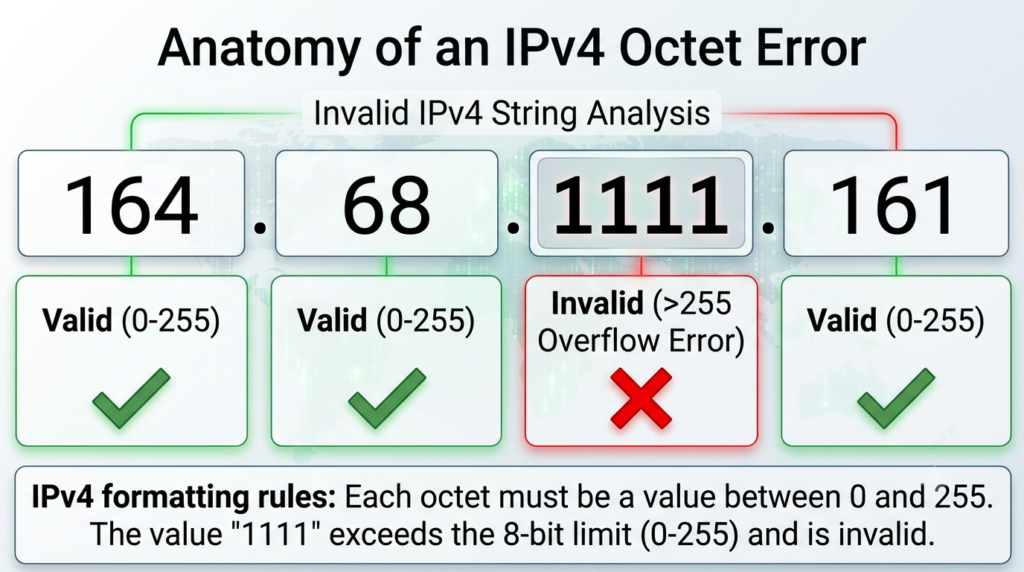
If you typed 164.68.1111.161 into your web browser’s address bar and received an error such as ERR_NAME_NOT_RESOLVED, Server Not Found, or This site can’t be reached, your browser is rejecting the address because 164.68.1111.161 is an invalid IPv4 address.
The error happens because the third section of the address—1111—violates fundamental networking rules. Under standard Internet Protocol version 4 (IPv4) architecture, no segment of an IP address can exceed the value of 255.
Whether you are trying to open a remote media server, log into a router dashboard, or connect to a web proxy portal, this guide breaks down why this error occurs, how IPv4 addressing works, and how to find the correct, functional IP address you intended to reach.
Why 164.68.1111.161 Is an Invalid IP Address
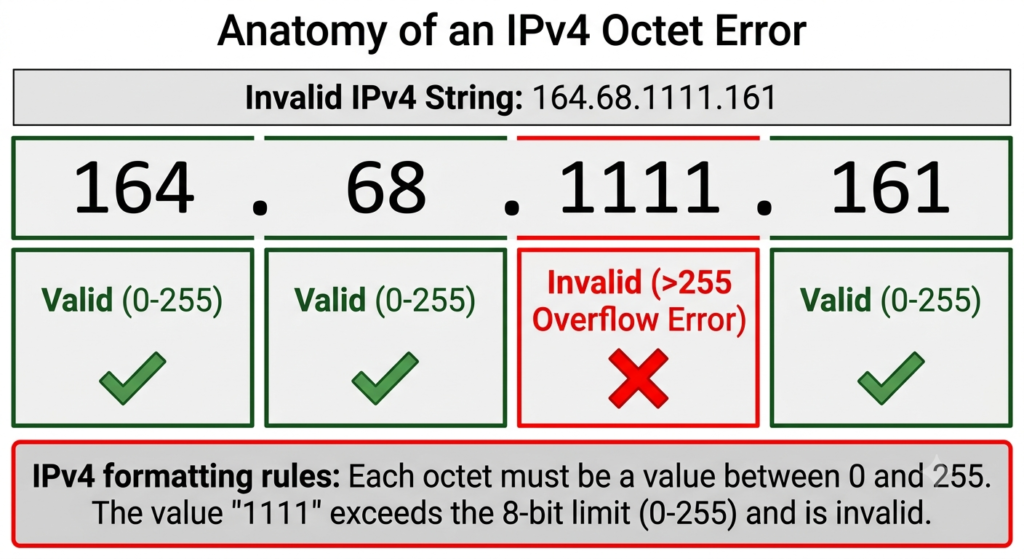
To understand why 164.68.1111.161 fails, it helps to look at how network equipment and web browsers read IP addresses.
An IPv4 address is a 32-bit numerical label assigned to every device connected to a computer network using the Internet Protocol. To make these 32 binary bits readable to humans, networking standards divide them into four 8-bit sections called octets, separated by periods (dot-decimal notation).
   164   .   68   .  1111  .  161
 [Octet 1] [Octet 2] [Octet 3] [Octet 4]
   (Valid)   (Valid)  (INVALID)  (Valid)
The 0–255 Octet Rule
Because each octet represents an 8-bit binary number ($2^8$), the minimum possible value for an octet is 0 (00000000 in binary) and the maximum possible value is 255 (11111111 in binary).
When we evaluate 164.68.1111.161 against standard IPv4 syntax rules:
-
164 — Valid (falls between 0 and 255)
-
68 — Valid (falls between 0 and 255)
-
1111 — Invalid (exceeds the maximum limit of 255 by 856)
-
161 — Valid (falls between 0 and 255)
Because 1111 cannot be converted into an 8-bit binary number, operating system network stacks and web browsers automatically reject the string as an IP address.
Instead of treating it as a direct network destination, modern browsers like Google Chrome, Microsoft Edge, and Apple Safari assume 164.68.1111.161 is an unformatted domain name. The browser then attempts to resolve it via a Domain Name System (DNS) query. Because no registered domain name exists under that exact numerical label, the browser returns an ERR_NAME_NOT_RESOLVED or DNS_PROBE_FINISHED_NXDOMAIN error message.
Common Typo Variations: Finding the Correct IP
The sequence 164.68.1111.161 is almost always the result of a typographical error made when manually typing an IP address from a document, configuration script, or setup screen.
Depending on what service or device you are trying to access, your target address is likely one of the following variations:
1. 164.68.111.161 (Public IPv4 Address)
The most probable intended address is 164.68.111.161. Dropping one of the extra 1s from the third octet produces a fully valid, routable public IPv4 address.
-
Address Type: Public IPv4
-
Valid Format: Yes ($164 \le 255$, $68 \le 255$, $111 \le 255$, $161 \le 255$)
-
Common Use Cases: Public IP blocks in this range belong to global hosting providers, Virtual Private Servers (VPS), media streaming proxies, or remote application servers.
If you were given this IP to access a private media portal or web application, check your login documentation to ensure you have not accidentally doubled a key stroke.
2. Local Router or Modem Gateways
If you encountered this address while attempting to log into your home internet router, modem, or Wi-Fi access point, 164.68.1111.161 is fundamentally the wrong address class. Local network hardware uses Private IPv4 addresses reserved under RFC 1918 specifications. Common gateway default addresses include:
-
192.168.1.1 or 192.168.0.1 (Standard for Netgear, TP-Link, ASUS, Linksys)
-
10.0.0.1 (Standard for Xfinity/Comcast, Cisco, and corporate gateways)
-
192.168.100.1 (Standard for many fiber modems and standalone WAN bridges)
Step-by-Step: How to Fix Connection Errors and Access Your Target
If you are stuck on a connection error page, follow these steps to correct the address and verify your network path.
Step 1: Correct the Syntax in Your Browser
Ensure that you remove any unnecessary characters or improper prefixes in your browser’s address bar.
-
Highlight your browser’s address bar.
-
Replace
164.68.1111.161with the corrected IP address (e.g.,164.68.111.161). -
If connecting to a secure service or non-standard port, ensure the protocol prefix and port numbers are positioned properly:
-
Standard HTTP:
[http://164.68.111.161](http://164.68.111.161) -
Secure HTTPS:
[https://164.68.111.161](https://164.68.111.161) -
Custom Port:
[http://164.68.111.161:8080](http://164.68.111.161:8080)(where8080represents the assigned port)
-
Important Safety Note: Avoid placing leading zeros inside octets (e.g., writing
164.068.111.161). Some browser engines interpret leading zeros as octal (base-8) notation, which changes how the IP is resolved. If you are managing enterprise endpoints or remote servers, review our guide on provisioning secure IPv4 address space for your business to prevent routing and configuration errors.
Step 2: Clear Local DNS and Socket Caches
Because browsers attempt to resolve invalid IPs through DNS, your browser may temporarily cache the failed lookup attempt. Clearing this internal cache ensures fresh network requests.
-
Google Chrome:
-
Open a new tab and navigate to
chrome://net-internals/#dns. -
Click Clear host cache.
-
Navigate to
chrome://net-internals/#socketsand click Flush socket pools.
-
-
Microsoft Edge:
-
Open a new tab and navigate to
edge://net-internals/#dns. -
Click Clear host cache.
-
Step 3: Test Network Reachability via Command Prompt or Terminal
During testing on Windows, macOS, and Linux systems, typing an out-of-range IP directly into terminal diagnostic utilities like ping immediately triggers an invalid parameter response:
C:\> ping 164.68.1111.161
Ping request could not find host 164.68.1111.161. Please check the name and try again.
To test whether the corrected destination IP (164.68.111.161) is reachable across the internet:
-
Open Command Prompt (Windows) or Terminal (macOS/Linux).
-
Type the following command and press Enter:
Bashping 164.68.111.161 -
Evaluate the output:
-
Successful replies: Indicates the target server is powered on, connected to the internet, and accepting ICMP requests.
-
Request timed out: The target IP may be offline, guarded by a firewall, or dropping ICMP ping requests for security reasons.
-
Step 4: How to Find Your Local Router IP Address
If you ended up at 164.68.1111.161 while attempting to open your local internet administration page, locate your actual local gateway IP using system diagnostics:
On Windows:
-
Press
Windows Key + R, typecmd, and press Enter. -
In the terminal window, type:
DOSipconfig -
Look for the network adapter currently connected (e.g., Wireless LAN adapter Wi-Fi or Ethernet adapter).
-
Locate the line labeled Default Gateway. The address listed next to it (e.g.,
192.168.1.1) is your actual router access IP.
On macOS:
-
Open System Settings $\rightarrow$ Network.
-
Select your active Wi-Fi or Ethernet connection and click Details.
-
Select the TCP/IP tab.
-
Locate the numerical address next to Router.
Key Differences: Public vs. Private IP Addresses
Understanding the distinction between public and private IP ranges prevents future navigation errors.
| Characteristic | Public IP Addresses | Private IP Addresses |
| Address Scope | Globally unique across the entire Internet. | Unique only within your local home or office network. |
| Reserved Ranges | All addresses outside private/special ranges (e.g., 164.68.111.161). |
10.0.0.0 – 10.255.255.255 |
Operating servers or connecting directly to public IP ranges like 164.68.111.161 requires strict security controls to avoid exposed ports and unauthorized access attempts. Learn more about safe public IPv4 allocation practices when setting up public-facing servers or proxy gateways.
172.16.0.0 – 172.31.255.255
192.168.0.0 – 192.168.255.255 |
| Accessibility | Direct connection from anywhere on the internet (if open). | Accessible only by devices physically or wirelessly connected to the local router. |
| Managed By | Internet Assigned Numbers Authority (IANA) and ISPs. | Assigned automatically by your local router’s DHCP server. |
| Typical Purpose | Hosting websites, public APIs, VPN nodes, remote media streams. | Connecting personal computers, smart TVs, phones, and local printers. |
Guide from cnvrtool : 164.68.1111.161: How to Convert and Fix Invalid IP Addresses Online
Frequently Asked Questions (FAQ)
What does the ERR_NAME_NOT_RESOLVED error mean?
ERR_NAME_NOT_RESOLVED is a browser error indicating that the browser could not translate the string entered in the address bar into a valid IP address. When you enter an invalid IP like 164.68.1111.161, the browser fails to process it as a direct IP and falls back to DNS lookup, which fails because 164.68.1111.161 is not a registered web domain.
Can an IP address octet ever be higher than 255?
No. Under standard IPv4 rules, an octet represents an 8-bit binary number, which strictly limits its decimal value range to 0 through 255. Any number higher than 255 (such as 1111) is mathematically invalid in IPv4 syntax.
Is 164.68.1111.161 a dangerous website or virus?
No, 164.68.1111.161 is not a virus or malicious website. It is simply an invalid numerical sequence that cannot resolve to any computer, server, or web host on the internet.
What should I do if a valid IP address still fails to load in my browser?
If you correct the address to a valid public IP (e.g., 164.68.111.161) and the page still fails to load:
-
Verify that the remote server requires a specific port number (e.g.,
:8080or:3000). -
Check if the service requires a secure connection (
https://instead ofhttp://). -
Ensure your local firewall, corporate VPN, or antivirus software is not blocking outgoing connections to remote server IPs.
About the Author
Gordon Henry is a technology and digital business writer who creates practical, easy-to-understand content about online payments, business technology, digital tools, and emerging trends. His writing focuses on helping small businesses and professionals understand technology and choose solutions that fit their needs.