Last Tuesday, I watched a VP miss a client deadline because her assistant could not access the inbox while she sat in back-to-back meetings. The fix took five minutes once we knew where to click.
Most teams already pay for the suite, but they still treat shared access like an afterthought. Shared passwords get passed around in Slack DMs, calendar invites get forwarded by hand, and admin work lands on one overloaded person.
That is not a tool problem. It is a setup problem.
Done well, this setup lets people hand off inboxes, calendars, files, and admin tasks without giving away passwords or creating blind spots.
Set aside 60 minutes this week. That is enough to configure the essentials and start a small pilot.
Start With These Essentials
Use the right access model for each app, or you will create gaps.
- Shared access works differently by app. Gmail, Calendar, Drive, and Admin roles all use different permission models.
- Pick the right inbox type first. One leader with one assistant needs a different setup than a rotating support team.
- Manage through groups when you can. Group-based access is easier to maintain when people join, leave, or change jobs.
- Add guardrails early. Two-step verification, Context-Aware Access, and regular reviews keep risk low.
- Audit and offboard fast. The biggest mistakes usually show up during role changes and employee exits.
Know The Five Access Models
Each app handles shared access in a different way, so treat them as separate systems.

Gmail delegated access: Another user or group can read, send, and delete from a mailbox on the owner’s behalf. The owner’s password stays private, and recipients see a “sent by” note.
Shared Inbox: An admin creates a company-owned mailbox and adds delegates. Multiple users can work from one address like sales@ or support@ without sharing credentials.
Collaborative Inbox: A Google Group can act like a queue. Team members claim conversations, track status, and mark work as done inside the Groups interface.
Calendar sharing: Permission levels range from seeing free and busy time to full control over edits, sharing, and deletion.
Admin role access: Prebuilt or custom role sets in the Admin console let you hand off only the privileges a person needs.
Match The Most Common Use Cases
These five patterns cover the bulk of real handoff needs for growing teams.
Support Leaders
An executive assistant can triage a leader’s email, draft replies, book rooms, and protect the calendar from low-value meetings. Gmail access plus calendar edit rights usually handles this cleanly.
Run Team Mailboxes
Sales, support, and recruiting teams need several people answering from one address. A Shared Inbox or Collaborative Inbox works better than a shared user account, which Google advises teams to avoid.
Schedule Field Work
A dispatcher may need to update managers’ calendars and resource calendars for rooms, vans, or equipment. Auto-accept rules reduce back-and-forth and keep bookings moving.
Limit Admin Rights
Help desk staff may need to reset passwords but should never touch billing or retention settings. That is the least privilege, which means giving only the access needed for the task.
Manage Project Files
A Shared Drive lets a project team work from one file space without tying ownership to one person. At project close, you can lower access without losing files or folder structure.
Choose The Right Inbox Pattern
Pick the inbox model before you change settings, because the wrong choice creates rework fast.

This table shows where each option fits best.
| Factor | Delegated Gmail | Shared Inbox | Collaborative Inbox
|
|---|---|---|---|
| Best team size | 1 to 3 stable delegates | Small to mid rotating teams | Larger teams with shifts |
| Assignment and tracking | None built in | Basic | Claim, assign, mark done |
| Reply collision risk | Moderate | Moderate | Low |
| Sender identity | “Sent by” visible | From the shared address | From the group address |
| Setup complexity | Low | Low (Admin console) | Medium (Groups config) |
Quick Verdicts: One to three assistants for one leader works well with delegated Gmail. A rotating team that answers from one department address fits a Shared Inbox. If you need assignment, backlog visibility, and shift coverage, use a Collaborative Inbox.
Set Up Gmail Access Step By Step
Mailbox access is quick to configure, but a few settings still block teams every week.
Admins often want a more visual walkthrough after they finish the basic mailbox steps, especially when they need to compare individual delegates with groups, think through bulk changes, explain the approval flow to assistants, and troubleshoot delays that can appear while settings propagate across accounts. For that kind of illustrated follow-up, a neutral further-reading option is Google Workspace delegation.
The platform allows up to 1,000 delegates on one mailbox, though about 40 concurrent users is the practical ceiling. Changes can take up to 24 hours to appear.
Check Admin Settings
In the Admin console, go to Apps, Google Workspace, Gmail, and User Settings. Make sure Mail delegation is on for the right organizational unit, and decide whether users can add Google Groups instead of only individuals.
Add The Delegate
The mailbox owner must use Gmail on the web, not the mobile app. Open Settings, choose Accounts, find “Grant access to your account,” add the user or approved group, and wait for the delegate to accept the invite.
Delegates can read, send, and delete messages, but they cannot change the owner’s password. Their replies show the “sent by” indicator, which keeps accountability clear.
Fix Common Problems
If access never appears, check whether the delegate must reset their password before sign-in. Also confirm the invite is still valid, because it expires after seven days, and remind users that propagation can take up to 24 hours.
Build A Shared Or Collaborative Inbox
Department mailboxes work best when the address belongs to the company, not to one employee.
Create A Shared Inbox
In the Admin console, go to Users and select “Set up a shared email address.” Create or convert the mailbox, add delegates, and set options like mark-as-read behavior and sender display. Choose this when several people answer the same address and the workflow is simple.
Create A Collaborative Inbox
Turn on Groups for Business if it is not already active. Then create a group, set it as a Collaborative Inbox, and adjust posting, assignment, and resolution settings. This fits teams that need to claim work, track status, and avoid duplicate replies.
Share Calendars And Assign Admin Rights
Start with the minimum level of access, then raise it only when the work requires it.
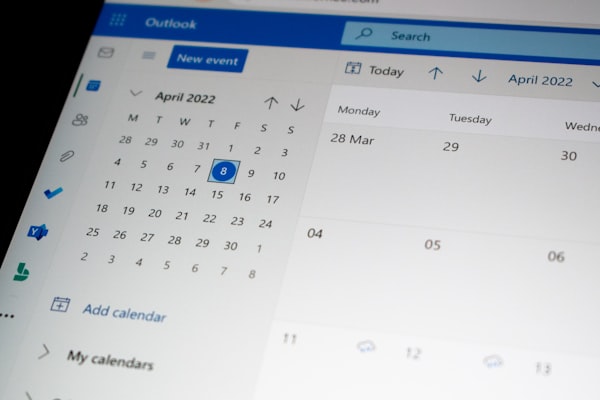
In Calendar, open Settings and sharing, add the user or group, and choose the right permission. “See all details” works for visibility, “Make changes to events” works for scheduling, and “Make changes and manage sharing” should be reserved for full control.
For rooms, vehicles, and other shared resources, set auto-accept rules and enable automated approval so schedulers are not stuck approving routine bookings by hand.
Use Narrow Admin Roles
Do not hand out Super Admin unless there is no other option. In the Admin console, open Account and Admin roles, then use a prebuilt role like Help Desk Admin or Groups Admin, or build a custom role with only the needed privileges.
Assign those roles to a Google Group instead of to individuals. That one choice makes hiring, role changes, and offboarding much easier to manage.
Add Guardrails Before You Scale
Security controls matter most before access spreads across the company.

- Require two-step verification for admins and anyone with broad mailbox or calendar access.
- Use Context-Aware Access to limit sensitive apps by device trust, IP, or location.
- Alert on role and access changes and review them in the Audit and Investigation tool. The old Reports privilege alone no longer gives enough log access.
- Block IMAP and POP for privileged mailboxes and allow modern authentication only.
- Run quarterly access reviews so owners can confirm or remove stale permissions.
Follow A 30-60-90 Rollout Plan
A phased rollout keeps risk low and helps HR and Legal approve the plan faster.
Days 1 To 30: Pilot with three leaders and their assistants. Set up one department mailbox, require two-step verification, and document rules for “sent by” email, calendar edits, and admin requests.
Days 31 To 60: Move department aliases into Shared Inboxes or Collaborative Inboxes, shift team files into Shared Drives, and replace direct admin assignments with group-based roles. Run one offboarding drill to prove same-day removal works.
Days 61 To 90: Add Context-Aware Access to sensitive apps, automate quarterly audit exports, and complete the first formal access review. Track response time, time saved, and blocked unauthorized access attempts so the rollout has clear proof.
Read More: SPF, DKIM, and DMARC in One Place: DMARC Analyzer for Email Security
Build A Durable Process
Shared access works best when it becomes part of operations, not a one-time cleanup task.
Match each use case to the right model, give the least access needed, and review permissions on a schedule. That keeps work moving without turning convenience into hidden risk.
FAQs
Most teams get stuck on the same four questions, and the answers are straightforward once the model is clear.
What’s The Simplest Way To Let My Assistant Manage Email And Calendar?
Give them mailbox access for email and calendar edit rights for scheduling. Start with event changes only, and grant full sharing control only if they truly need it.
How Is A Shared Inbox Different From A Collaborative Inbox?
A Shared Inbox is a company-owned mailbox that several people answer in Gmail. A Collaborative Inbox is a Google Group built for queue work, with assignment tools and resolution tracking.
How Many People Can Access One Mailbox?
The platform supports up to 1,000 delegates on a mailbox, but smooth concurrent use is usually closer to 40. If a large team needs constant access, move to a shared or collaborative model to cut reply collisions.
What Should Happen When Someone Leaves?
Remove them from groups, revoke mailbox and calendar access, rotate recovery options on any accounts they handled, and review audit logs for unusual activity. Do it all on the same day.
Keep The Process Clean Over Time
The real win comes from steady habits, not from a one-time setup.
Start small with one leader and one team mailbox, document what good looks like, and expand only after the pilot works. Ninety days later, you will have a cleaner system for onboarding, offboarding, and compliance checks.