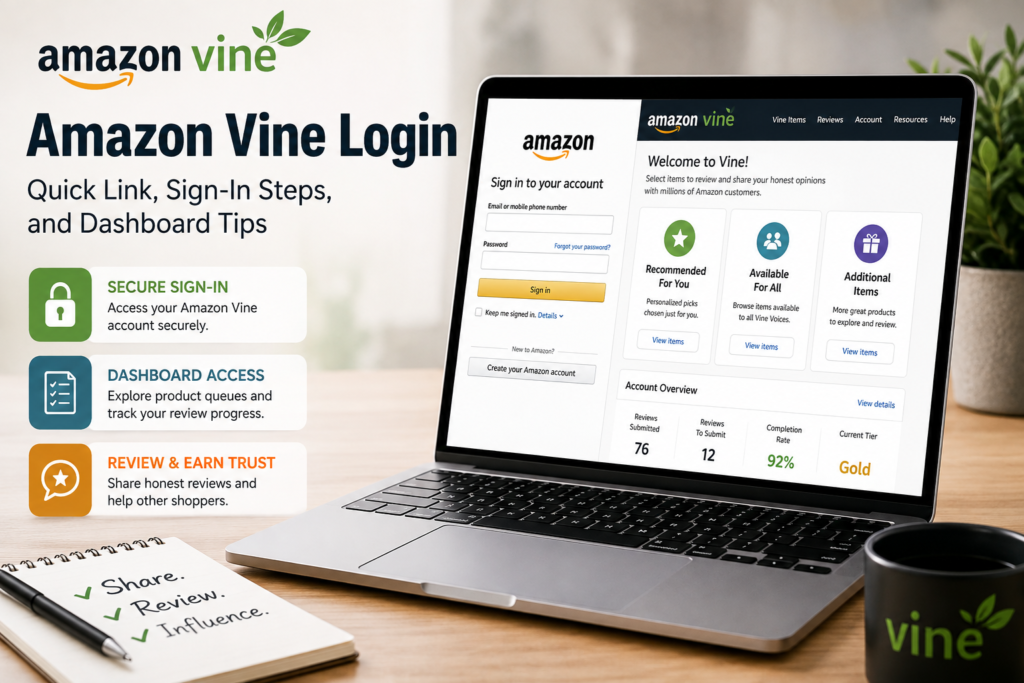
If you are already an invited Amazon Vine reviewer, the quickest way to access your account is to open the official Vine portal:
Log Into Your Amazon Vine Dashboard: Amazon Vine
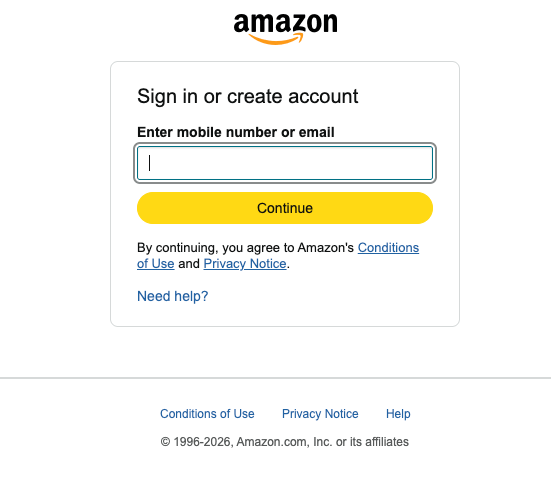
The most important part of the Amazon Vine login process is using the same Amazon account that received the Vine invitation. If you sign in with another household profile or an Amazon account that has not been invited, you may not be able to access the Vine portal.
Once you are inside, the dashboard gives you access to available product queues, your account information, and your review progress.
How to Sign In to Amazon Vine
The basic Amazon Vine login process is straightforward.
Step 1: Open the Vine portal
Go to:
If you are outside the United States, Amazon Vine may be available through the appropriate regional Amazon marketplace.
Step 2: Sign in with your invited Amazon account
Use the Amazon account connected to your Vine invitation.
This is important if you have:
- Multiple Amazon accounts
- A household account
- Separate personal and business accounts
- Different regional Amazon accounts
Amazon Vine reviewer access is invitation-based. Being signed in to a normal Amazon account does not automatically provide Vine access.
Step 3: Complete any required onboarding
Newly invited users may need to complete account or tax-related information before certain Vine features become available.
Read each screen carefully and provide accurate information. Tax requirements can vary depending on your country, account status, and applicable regulations.
Step 4: Access your dashboard
After successful authentication and onboarding, the Vine portal should display your available product areas and account information.
What to Do After Your First Amazon Vine Login
Your first visit should not be treated as just another Amazon shopping session.
Before requesting products, take time to understand:
- Your current account tier
- Item request limits
- Your review completion status
- Any applicable Estimated Tax Value
- The evaluation period shown in your account
- The Vine participation rules available in your portal
The exact interface, limits, requirements, and available products can change over time and may differ by marketplace. Your own Vine Account page and current Amazon program information should take priority over older third-party guides.
Understanding the Amazon Vine Dashboard
The Vine dashboard is designed around product discovery and account management.
Depending on your marketplace and account, you may see several product queues.
Recommended For You (RFY)
Recommended For You, commonly called RFY, contains products selected for your Vine account.
Availability can change quickly. Seeing an item in RFY does not necessarily mean it will remain available indefinitely.
Available for All (AFA)
Available for All, or AFA, contains products that eligible Vine reviewers can browse and request while inventory remains available.
Competition for popular products can be high, so availability may change rapidly.
Additional Items (AI)
Additional Items, often shortened to AI, generally provides a broader selection of products available through Vine.
This area can be useful when your RFY queue does not contain products that interest you.
Your Account and Review Status
The Account area is where you should regularly check your Vine participation status.
It may show information related to:
- Items requested
- Reviews completed
- Review percentage
- Current tier
- Evaluation period
- Other program requirements
Your dashboard is the best place to monitor your current status rather than relying entirely on screenshots or older advice found online.
Amazon Vine Login Troubleshooting: Step-by-Step Fixes
If you cannot access the Vine dashboard, experience a login loop, or are redirected to the Amazon homepage, follow these steps in order.
Step 1: Confirm the Invited Amazon Account
Make sure you are signed in with the exact Amazon account that received the Vine invitation. If you have multiple accounts or household profiles, sign out before switching accounts.
Step 2: Open the Vine Portal Directly
The appropriate regional Vine portal after signing in.
| Country | Direct Vine Portal Link |
|---|---|
| United States | amazon.com/vine |
| United Kingdom | amazon.co.uk/vine |
| Canada | amazon.ca/vine |
| Germany | amazon.de/vine |
Step 3: Complete Security Verification
Check for Amazon security prompts and confirm that Two-Factor Authentication (2FA) is working correctly.
Step 4: Clear Cookies and Session Data
Sign out of Amazon, clear Amazon-related cookies, and try again in a private or incognito browser window.
Step 5: Disable Interfering Extensions
Temporarily disable aggressive ad blockers, privacy tools, or script blockers that may interfere with authentication or page loading.
Step 6: Try Another Updated Browser
If the problem continues, test the Vine portal in another browser to determine whether the issue is related to your browser profile, extensions, or cached data.
Step 7: Confirm Your Current Vine Access
If you are using the correct account but still cannot access the dashboard, verify that the account currently has active Vine access.
Step 8: Contact Amazon Support
If none of the steps resolve the issue, use the appropriate Amazon or Vine support option available through your account.
Quick takeaway: Most Amazon Vine login and redirect problems can be resolved by confirming the invited account, completing authentication, clearing session data, and accessing the Vine portal directly.
Amazon Vine Silver and Gold Tiers
Amazon Vine operates on a two-tier membership model—Silver and Gold. Your account status determines how many items you can request per day, the maximum Estimated Tax Value (ETV) per item, and access to higher-value product categories.
| Membership Tier | Daily Request Limit | Maximum Item Value (ETV) | 6-Month Evaluation Target |
| Silver Tier | Up to 3 items per day | Max $100 per item | Maintain review completion rate above 60% during the evaluation period. |
| Gold Tier | Up to 8 items per day | No price cap (Unlimited) | Review at least 80 items AND maintain a 90%+ review completion rate over 6 months. |
Your evaluation period runs continuously in 6-month cycles. If you drop below the 80-item or 90% threshold at the end of an evaluation period, your account will revert to Silver tier status for the next cycle.
Understanding the 6-Month Evaluation Period
Amazon evaluates Vine participation over an applicable six-month period. Your Account page tracks relevant activity, including requested items, completed reviews, review percentage, and current tier.
To maintain or qualify for Gold status, reviewers should monitor their review completion rate throughout the evaluation period rather than waiting until the end. A 90% or higher review completion rate is a key threshold for Gold-tier eligibility, alongside Amazon’s applicable activity requirements.
Amazon may update its Vine requirements, item limits, evaluation criteria, or eligibility rules. The requirements displayed in your Vine Account dashboard should always take priority.
3. Format Procedures for Faster Scanning
Use numbered steps for processes readers need to complete and use callout boxes for important warnings or quick actions.
Recommended Formatting Pattern
For login or troubleshooting procedures:
Step 1: Confirm the correct account.
Step 2: Open the Vine portal directly.
Step 3: Complete authentication.
Step 4: Clear browser data if necessary.
For important information:
Important: Always use the Amazon account that received the Vine invitation. Signing in with another account may prevent access to the Vine dashboard or redirect you away from the portal.
For quick takeaways:
Quick Tip: Check your Account tab regularly during the six-month evaluation period to monitor your review percentage, activity, and current tier s
Review Requirements and Evaluation Periods
Amazon Vine reviewers are expected to provide reviews for products they request through the program.
The review should reflect your genuine experience with the product and follow Amazon’s applicable review guidelines.
A useful habit is to avoid letting your review queue build up.
For example, you can create a simple routine:
- Check recently received Vine products
- Test or use them appropriately
- Write reviews based on your actual experience
- Submit completed reviews promptly
- Monitor your account status regularly
This approach can make it easier to keep track of outstanding products and avoid discovering a large review backlog near the end of an evaluation period.
Do not request products simply because they are available. Requesting items you can realistically evaluate is usually a more manageable approach.
Understanding Estimated Tax Value and Tax Responsibilities
For U.S. Vine participants, products may have an Estimated Tax Value (ETV) associated with them.
Tax treatment can depend on individual circumstances and applicable law. Information shown by Amazon should not be treated as a substitute for professional tax advice.
New or existing participants may also be asked to complete tax information through Amazon’s tax processes.
If you receive tax forms or have questions about how Vine participation affects your tax obligations, review the official information provided by Amazon and consider speaking with a qualified tax professional.
Can You Apply for Amazon Vine?
For reviewers, Amazon Vine is generally an invitation-based program.
Amazon identifies and invites reviewers to participate. A normal Amazon customer cannot simply create a Vine reviewer account through a public registration form.
If you are interested in becoming a Vine Voice, focus on writing useful, honest, and detailed reviews for products you have actually used.
Amazon describes Vine as a program involving invited reviewers who provide opinions intended to help customers make informed purchase decisions.
There is no guaranteed method for receiving an invitation, and nobody can legitimately promise that a particular review strategy will secure Vine access.
Want to Join Amazon Vine? Learn how the invitation-based program works and focus on creating genuinely useful Amazon reviews.
Amazon Vine Access for Sellers and Brands
Amazon Vine also has a seller side, which is different from the reviewer dashboard.
Eligible selling partners can access Vine through Seller Central to enroll qualifying products for Vine reviewers. Amazon’s current seller information indicates that participation requirements can include having the appropriate professional selling status, a qualifying Brand Registry role, and eligible FBA listings. Product eligibility requirements may also include limits on existing reviews and other listing requirements.
Sellers should verify current requirements directly inside Amazon Seller Central because eligibility rules, fees, and product requirements can change.
Reviewer access and seller access are separate. A Vine Voice does not use Seller Central to request review products, while a seller does not use the reviewer dashboard to manage product enrollment.
Read More: 9 Best Amazon Repricing Tools with Built-in Analytics & ReportsRead More: Why Tech-Driven Brands Rely on Amazon PPC Agency Strategies for Faster Growth |
Frequently Asked Questions
What is the Amazon Vine login link?
The main U.S. Vine portal is:
| Country | Direct Vine Portal Link |
|---|---|
| United States | amazon.com/vine |
| United Kingdom | amazon.co.uk/vine |
| Canada | amazon.ca/vine |
| Germany | amazon.de/vine |
Other regions may use a localized Amazon marketplace.
Why can’t I access the Amazon Vine dashboard?
First, check that you are signed in with the exact Amazon account that received the Vine invitation. Also try clearing cookies, using private browsing, checking two-factor authentication, and testing another browser.
Can anyone sign up for Amazon Vine?
For reviewers, Amazon Vine is generally invitation-based. There is no public application that guarantees entry into the Vine Voice program.
What are RFY, AFA, and AI in Amazon Vine?
RFY means Recommended For You, AFA means Available for All, and AI refers to Additional Items. These are product areas within the Vine reviewer experience.
What should I do if Amazon Vine redirects me to the Amazon homepage?
Sign out, open a private browsing window, sign back in with the invited Amazon account, and then return directly to the Vine portal.
Do Amazon Vine products have tax implications?
They may, particularly where Estimated Tax Value or local tax reporting rules apply. Review the information provided in your Amazon account and consult a qualified tax professional for advice about your personal situation.
How do Amazon sellers access Vine?
Eligible sellers can generally manage Vine through Amazon Seller Central. Current eligibility and product requirements should be checked directly with Amazon because they can change.
About the Author
Gordon Henry is an E-Commerce Strategy Specialist, Amazon Ecosystem Analyst, and Digital Consumer Behavior Expert. With over 8 years of experience, he has worked on analyzing Amazon Seller Central processes, review program compliance, account access procedures, and broader e-commerce strategies.
His work focuses on helping readers better understand complex digital commerce platforms, account systems, marketplace policies, and consumer behavior through clear, practical, and research-driven content.
Organization: Independent E-Commerce Insights & Retail Analytics Group