

Public debate about AI image manipulation usually screams about deepfakes. But for creative professionals, the reality is boring. It’s about workflow. We aren’t trying to trick the electorate; we are trying to fix a bad headshot without spending three hours masking hair in Photoshop.
Icons8 Face Swapper targets this specific gap.
It isn’t a meme toy, nor is it a complex video rigging suite. It is a static image processor built to alter identities or correct expressions while maintaining high-resolution output. For designers and marketers, the challenge isn’t figuring out how to click the button. The challenge is using the tool responsibly to maintain visual fidelity while navigating the ethics of changing a human face.
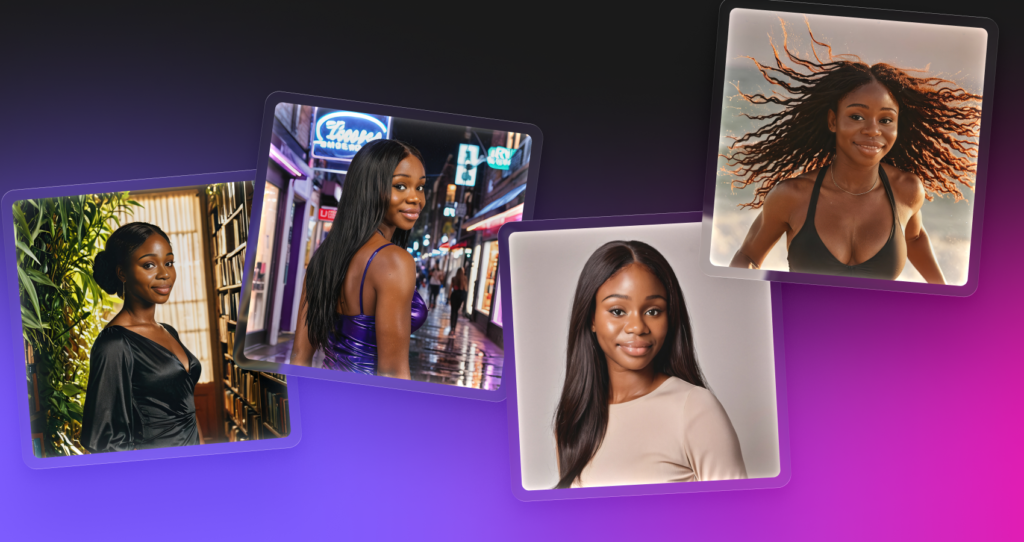
The Mechanics of Identity Synthesis
You need to know how the engine works to trust it. Unlike the “copy-paste” method of early manual compositing, Face Swapper doesn’t just cut a face from Image A and plaster it onto Image B.
That approach always looks fake.
Instead, the AI generates a new face that exists “in between” the source and the target. It analyzes the facial landmarks of the target body-lighting, skin texture, angle-and synthesizes a new visage. This new face resembles the source identity but physically fits the target environment.
For professional use, this distinction matters. The resulting image usually retains the lighting coherence of the original photograph, which is the hardest part to fake manually. When you execute a face swap using this engine, you are essentially asking the AI to hallucinate a person who looks like your source subject but was standing in the exact lighting conditions of your target photo.
Scenario: Localizing Marketing Assets
Marketing teams often face a specific headache: localization.
Suppose you license a high-quality stock photo from the Moose library. The composition works, the lighting looks expensive, and the brand colors match. But the campaign is launching in a region where the demographic representation in the photo feels disconnected from the target audience.
In a traditional workflow, you have two bad options: an expensive reshoot or a desperate search for a “lookalike” image that probably doesn’t exist.
Face Swapper offers a third path. A designer can take that base image and swap the model’s face with one that better represents the local demographic. Because the tool supports up to 1024px resolution for the face itself-significantly higher than many mobile competitors-the result holds up for web banners and digital brochures.
Upload the high-res base photo. Select a generated face or a different stock model as the source. Process the swap. The body language and environment remain untouched. You preserve the production value while adapting the identity.
Scenario: Preserving Anonymity in Sensitive Reportage
Non-profits and journalists face a harder problem. Organizations often need to share visual stories to garner support, but showing the actual faces of subjects can put those individuals at risk.
Black bars or pixelation ruin the image. They dehumanize the subject and kill the emotional connection.
“Privacy by synthesis” is a better alternative.
A content manager for an NGO can upload a photo of a volunteer or beneficiary. Instead of swapping in a celebrity face, they use an AI-generated face (which belongs to no real human) as the source. The resulting image shows a human face with realistic expressions and eyes. It maintains the emotional weight of the scene. Yet, the actual identity of the person in the photo is completely masked.
The documentation notes that this makes the online identity unrecognizable. You get anonymity without destroying the aesthetic.
A Narrative Example: The Corporate Group Shot Fix
Meet Javi, a graphic designer at a mid-sized tech firm.
Tuesday morning brings a frantic request from HR. They have a group photo of the executive team intended for the “About Us” page. The lighting is great. Five out of six people look perfect. But the CTO is mid-sentence, mouth open, eyes half-closed.
Reshooting isn’t an option. The executives are already traveling.
Javi opens Icons8 Face Swapper in his browser. No software installation, no GPU driver updates. He drags the group photo into the upload zone. The interface detects all six faces automatically-a feature known as Multiswap.
He ignores the five good faces. For the CTO, he uploads a solo headshot taken a year ago where the executive is smiling properly. He selects that headshot as the source.
One click later, the tool generates a version of the group shot where the CTO’s pleasant expression from the solo shot is mapped onto his body in the group photo. The lighting matches the group environment perfectly. Javi downloads the result. Because the file size is under the 5 MB limit and the faces are sharp, he sends it directly to the web dev team.
Problem solved in five minutes.
Comparing the Alternatives
Context matters. When evaluating this tool, look at the competition.
Manual Compositing (Photoshop)
Control is the main benefit here. You can mask every hair and adjust every curve. But a realistic face swap in Photoshop takes a skilled retoucher anywhere from 30 minutes to two hours to match skin tones and grain. Icons8 automates the grain and lighting matching, reducing the time to seconds.
Mobile Apps (Reface, FaceApp)
Ubiquitous, but generally unsuited for professional work. They often aggressively compress images, resulting in pixelated outputs that look terrible on desktop screens. They focus on “fun” filters rather than preserving the integrity of the original photo’s resolution. Icons8’s focus on 1024px face resolution puts it in a different utility bracket.
Icons8 Face Swapper
The middle ground. It lacks the pixel-perfect manual control of Photoshop but offers vastly superior resolution compared to mobile apps. It is a batch-capable, browser-based utility for “good enough” results at high speed.
Limitations and When to Avoid
Don’t expect magic every time. The tool has constraints that a practitioner must respect to avoid wasted time.
The 3/4 Angle Problem
The AI struggles with head positions that are not front-facing or direct profiles. If your subject looks down and away at a 45-degree angle, the mapping may slip. Features might misalign.
Obstructions are Risky
Marketing pages might suggest it handles accessories, but the technical documentation warns against obstructed faces. If a subject has a hand over their mouth, heavy bangs covering eyebrows, or opaque sunglasses, the “in-between” generation can produce artifacts. The AI tries to guess what is behind the hand or glasses. It often guesses wrong.
Batch Processing Degradation
Browser-based interfaces have limits. While there are no hard upload limits for batching, performance degrades with very large batches. Enterprise-scale volume demands the API subscription, not the web interface.
Read More: AI-Driven Solutions in Managed IT Services: Revolutionizing Efficiency and Security
Practical Tips for Best Results
- The “Skin Beautifier” Hack
Here is a useful trick for retouching without changing identity. Upload the same photo as both the source and the target. The AI attempts to map the face onto itself. In doing so, it often smooths out skin texture and minor imperfections. It acts as an automated beauty filter that retains the person’s exact likeness.
- Use Clipboard Integration
Don’t waste time saving images to your desktop for high-volume selection. The tool supports `Ctrl+V` (paste) directly into the interface. Copy an image from a stock site or your asset library and paste it straight into the upload area.
- Watch Your File Sizes
The 5 MB limit is strict. Working with raw DSLR conversions requires exporting them as high-quality JPGs or WEBPs under that threshold before uploading.
- Leverage the Upscaler Integration
Small source faces often result in soft swaps compared to a sharp background. Icons8 integrates its Smart Upscaler. Running the final output through the upscaler helps match the sharpness of the new face to the rest of the high-res image.
- Managing Privacy History
Security matters. While images are stored securely, they remain available via a direct link for 30 days. For confidential projects, navigate to the history and clear the images manually immediately after downloading your result. Don’t wait for the automated deletion cycle.


